

Key Takeaways
- WooCommerce connects to Klaviyo through the official extension, which you install from the WooCommerce Marketplace.
- Customer, product, cart, checkout, order, and browsing data can all sync into your Klaviyo account.
- Installing the plugin is not enough, so test everything before any flow depends on it.
- Store events can start cart recovery, browse abandonment, post-purchase, cross-sell, and win-back flows by themselves.
- Checkout consent, signup forms, and coupons each have WooCommerce rules that are easy to miss.
- Caching plugins, firewalls, SSL, permalinks, and old plugins are common reasons the integration stops working.
Your WooCommerce store may record valuable cart, checkout, and order activity that never reaches your email platform correctly. When that data is missing or incomplete, recovery flows, segmentation, and reporting can all become less reliable.
The Klaviyo WooCommerce integration closes that gap by sending store activity straight into customer profiles. Orders, carts, product views, and consent all arrive in one place, ready for emails and texts.
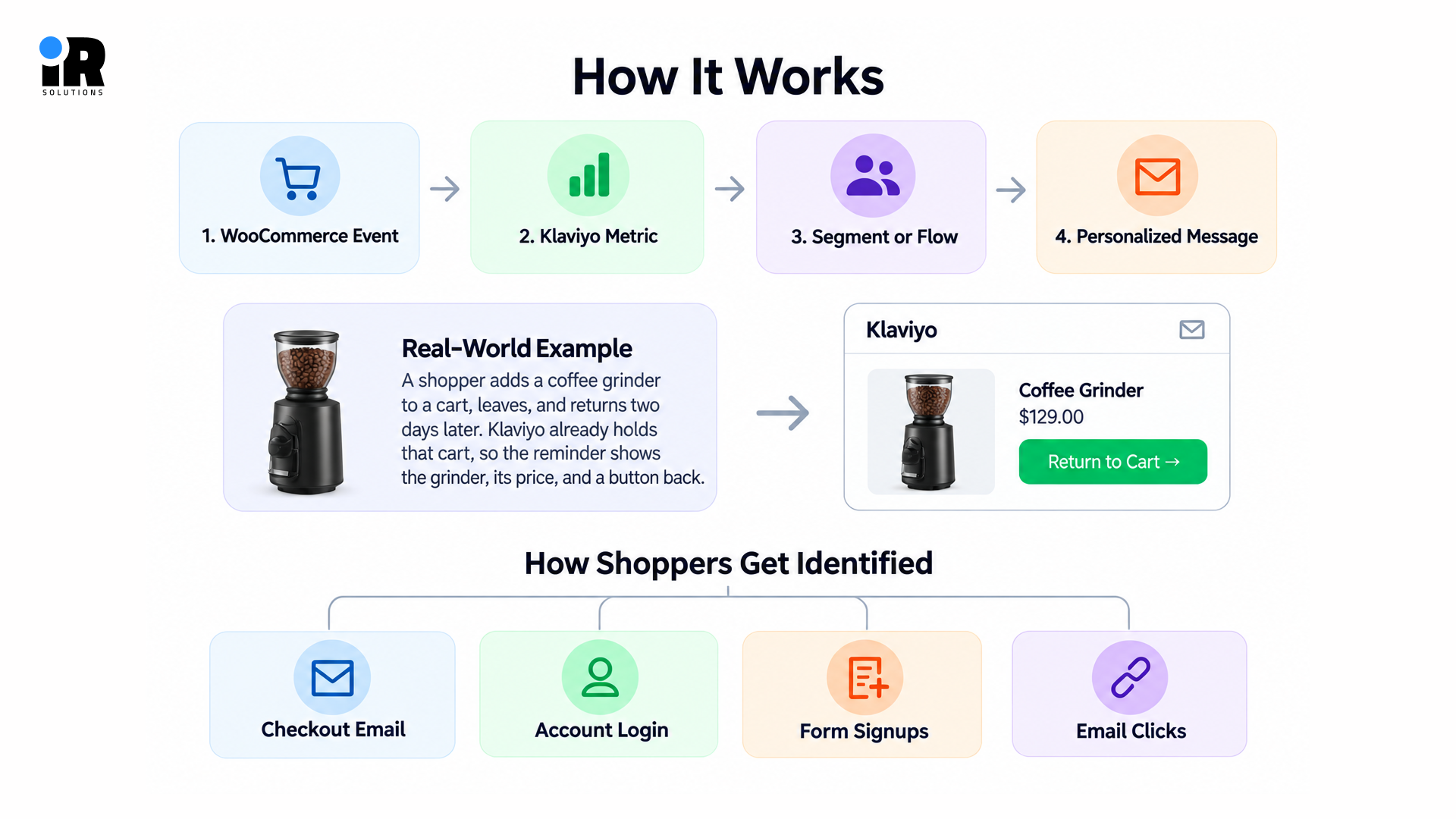
Installing the plugin takes minutes, but the work that follows decides whether the data can be trusted. A shopper who views a product, adds it to a cart, and leaves becomes a trigger for a timed reminder.
A first-time buyer can receive a thank-you, care tips, and a review request without anyone sending them by hand. None of that works if checkout events go missing, consent lands on the wrong list, or old orders never sync.
Those quiet setup mistakes are the ones store owners tend to discover weeks later, when revenue already looks strangely low. Connecting the two tools properly, then testing every event, keeps your reports honest from the very first day.
Even a small store can run these automations once the data is clean and the right events are flowing in.
What Does the Klaviyo WooCommerce Integration Do?
The integration connects everyday WooCommerce store activity with matching customer profiles inside your Klaviyo account in real time. That gives marketers a working picture of each shopper instead of a plain list of email addresses.
With the data in place, you can use the following information to target and personalize messages:
- Customer Details: Names, email addresses, and locations attach to each profile whenever WooCommerce has that information available for the customer.
- Product Data: Product names, SKUs, categories, and quantities travel with each cart and order event you track.
- Purchase History: Every tracked order builds a timeline you can use for segments, filters, and follow-up messages.
- Cart Activity: Added to Cart events show which items shoppers picked up and which ones they quietly left behind later.
- Checkout Activity: Started Checkout events record cart value and items when a known shopper reaches the checkout page.
- Browsing Behavior: Viewed Product and Active on Site events show what known visitors looked at before leaving.
- Order Status: Fulfilled, cancelled, and refunded orders each create their own event, so your messages can match the order.
- Marketing Consent: Email and text consent collected at checkout syncs to the lists you choose during setup.
New to Klaviyo? Read what Klaviyo is and how it works before diving into the details.
What You Need Before Connecting Klaviyo to WooCommerce
Many connection errors start inside the store, not Klaviyo, so five quick checks now save a lot of frustration. Work through this short checklist before you click anything, and the setup steps that follow will run smoothly.
A WooCommerce Store With Admin Access
You need administrator access to WordPress and WooCommerce so you can install and activate the Klaviyo extension. Editor or shop manager roles usually cannot install plugins, which stops the setup at the first step.
A Klaviyo Account
Make sure you are logged in to the correct Klaviyo account before you start the connection. This matters most for agencies and owners who manage several accounts, because the wrong approval is hard to undo.
HTTPS and a Valid SSL Certificate
Your store should load on HTTPS with a valid SSL certificate before you connect anything. SSL or HTTPS problems can prevent Klaviyo from connecting to WooCommerce correctly, so verify that the store URL uses HTTPS and the certificate is valid before setup.
WordPress Permalinks Enabled
Pretty permalinks must be switched on, so avoid the Plain setting under Settings and then Permalinks. A plain permalink structure can break the API address Klaviyo uses and trigger a 404 error.
Review Caching, Redirect and Security Plugins
Caching, redirect, and security plugins can interfere with the connection, so review them before you begin. Klaviyo suggests pausing caching and redirect plugins during setup, then turning them back on once the connection works.
Never leave your security or caching tools off for good, because your store needs them every day. If a firewall blocks the connection, add Klaviyo's integration IP addresses to its allow list instead.
How to Connect Klaviyo to WooCommerce
The setup itself is straightforward when your WooCommerce store and Klaviyo account are ready.
Step 1: Install the Klaviyo for WooCommerce Extension
Log in to your WordPress dashboard, click WooCommerce, then Extensions, and type Klaviyo into the search box. Open the Klaviyo for WooCommerce extension on the official WooCommerce Marketplace and add it to your site.
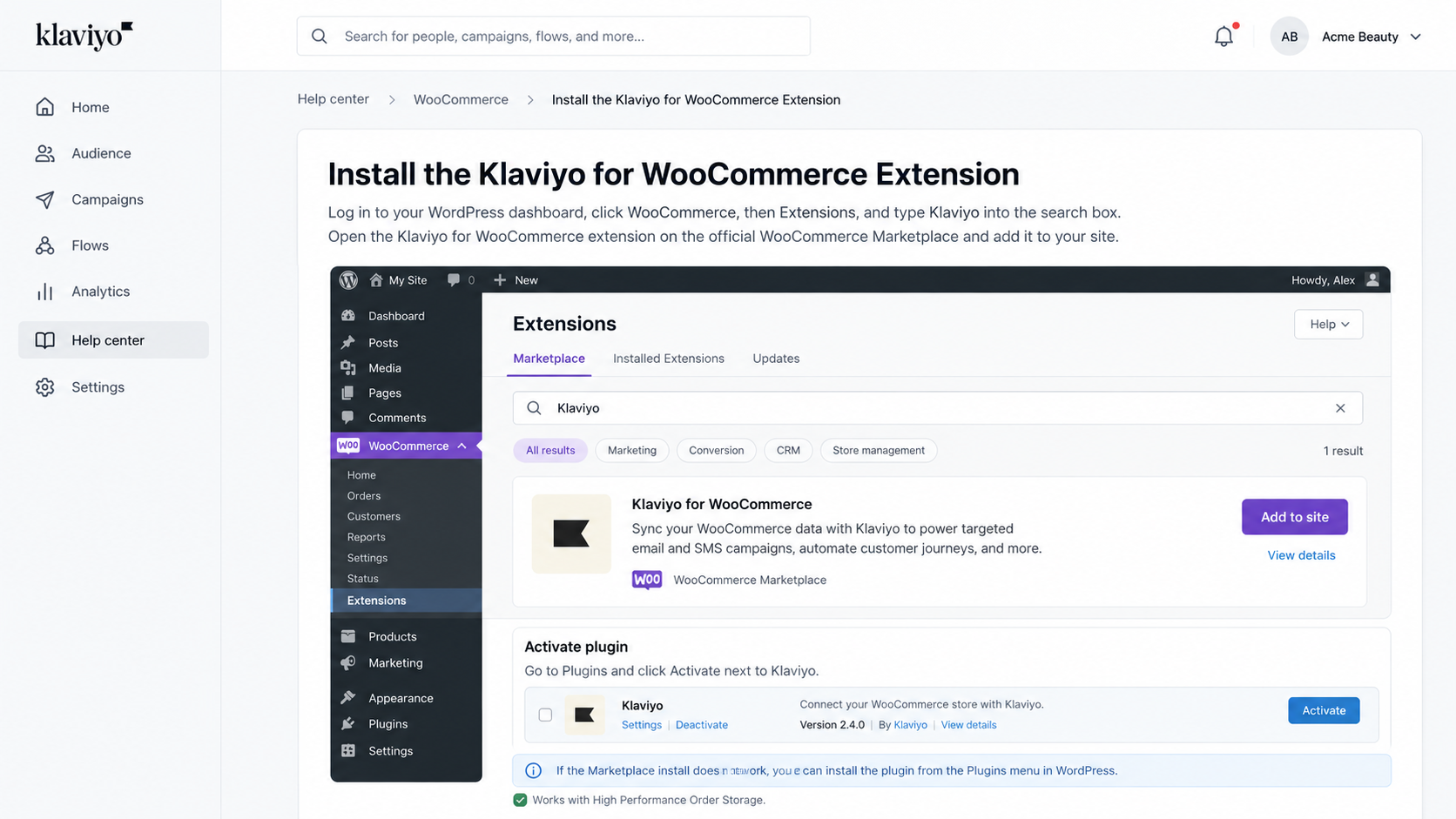
Follow the on-screen prompts, then go to the Plugins page and click Activate next to Klaviyo. If the Marketplace install does not work, you can install the plugin from the Plugins menu in WordPress.
The extension also works with High Performance Order Storage, so newer stores do not need any workaround.
Step 2: Open Klaviyo Inside WooCommerce
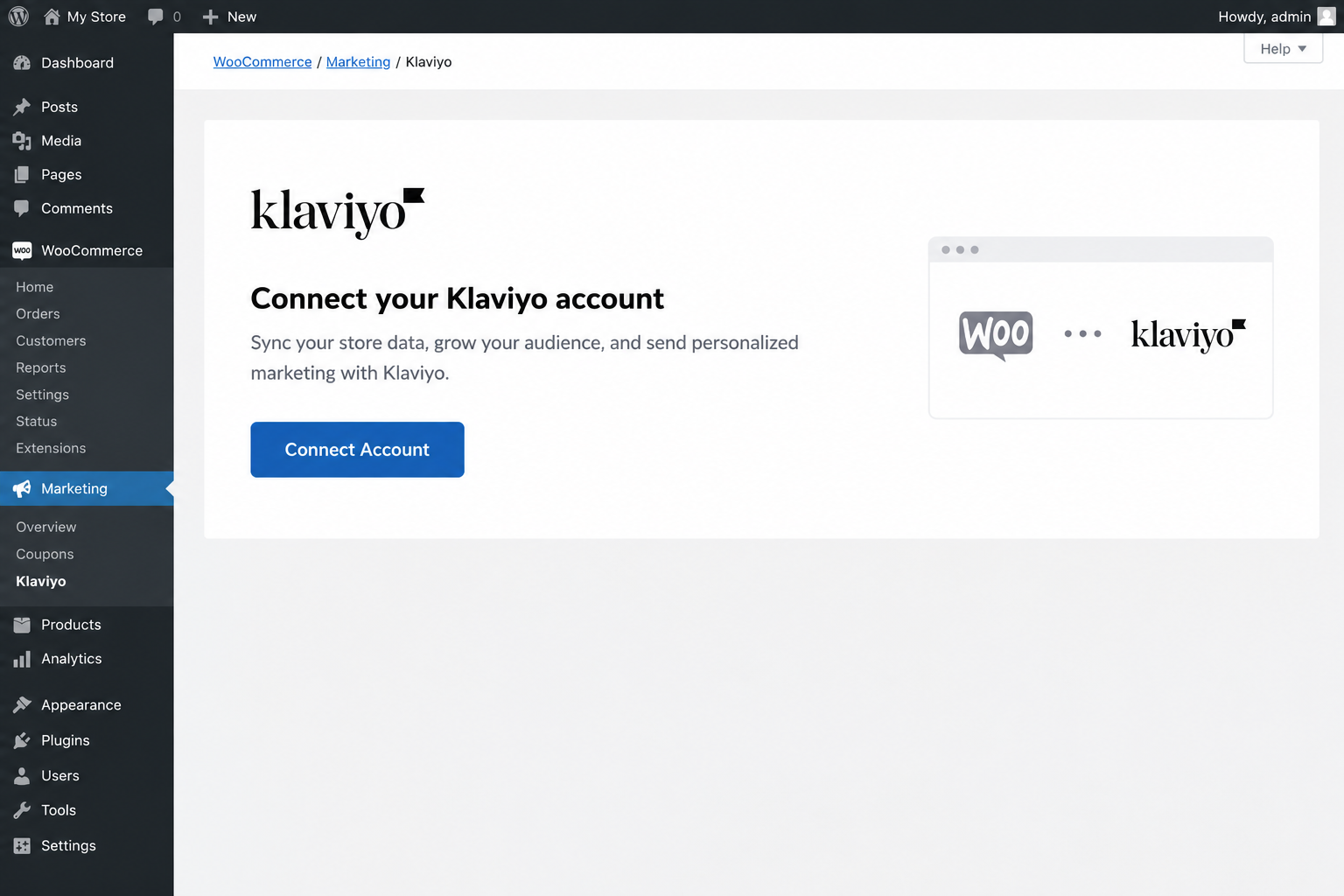
After activation, open your WooCommerce admin, choose Marketing from the left menu, and then click the Klaviyo option. Click Connect Account to begin, which starts the authorization process between your store and Klaviyo.
Step 3: Connect the Correct Klaviyo Account
Log in to Klaviyo if prompted, then confirm the account name shown on the screen. Read the permissions carefully, then click Approve to let the extension share data with Klaviyo.
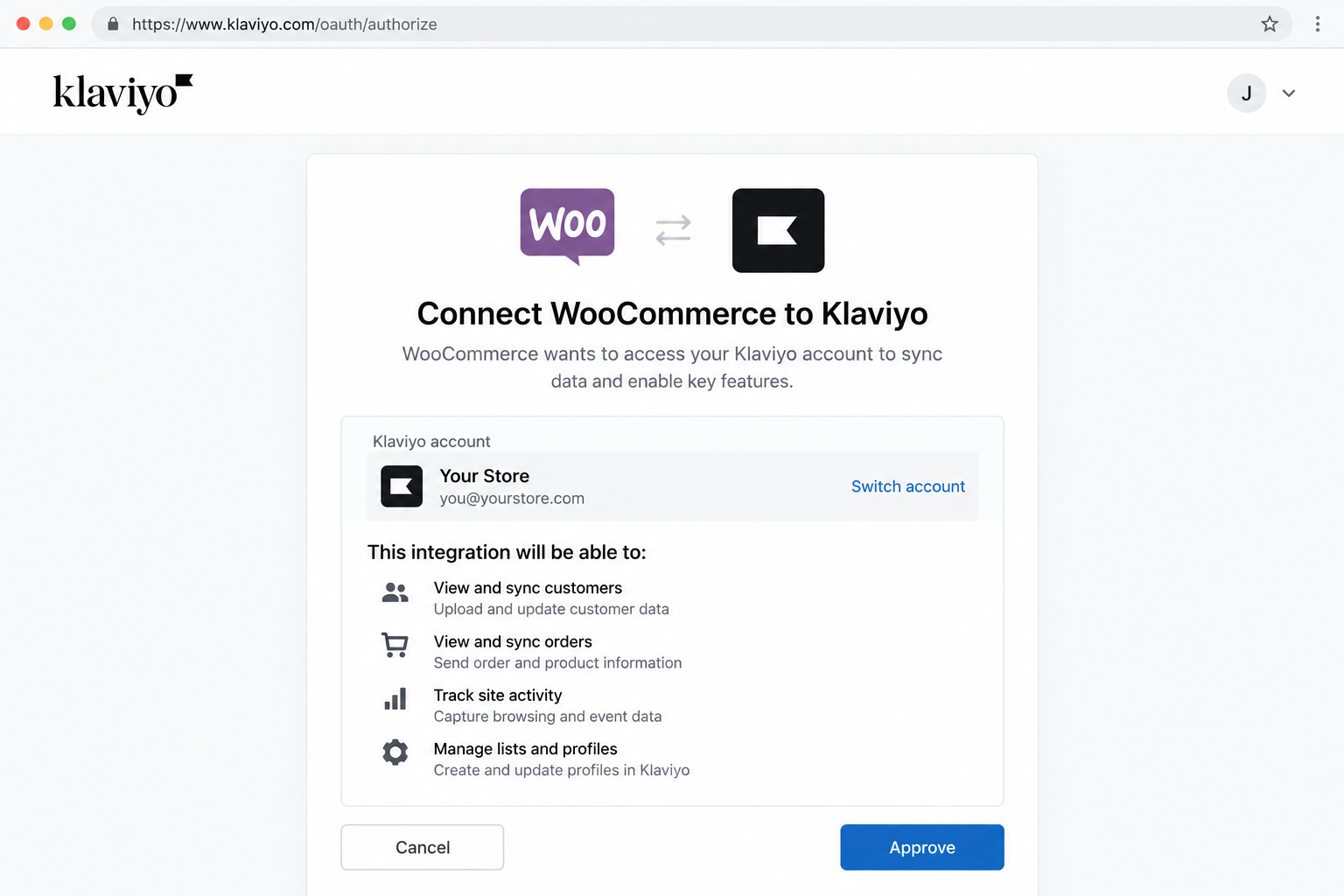
Agencies and owners with several accounts should open a new tab and check the account name first. Logging out of accounts you do not plan to connect removes the risk of approving the wrong one.
Step 4: Configure Email Marketing Consent
On the settings page, you can add an email consent checkbox to your checkout page. Tick the box labelled Add email marketing consent checkbox to your checkout page to turn it on.
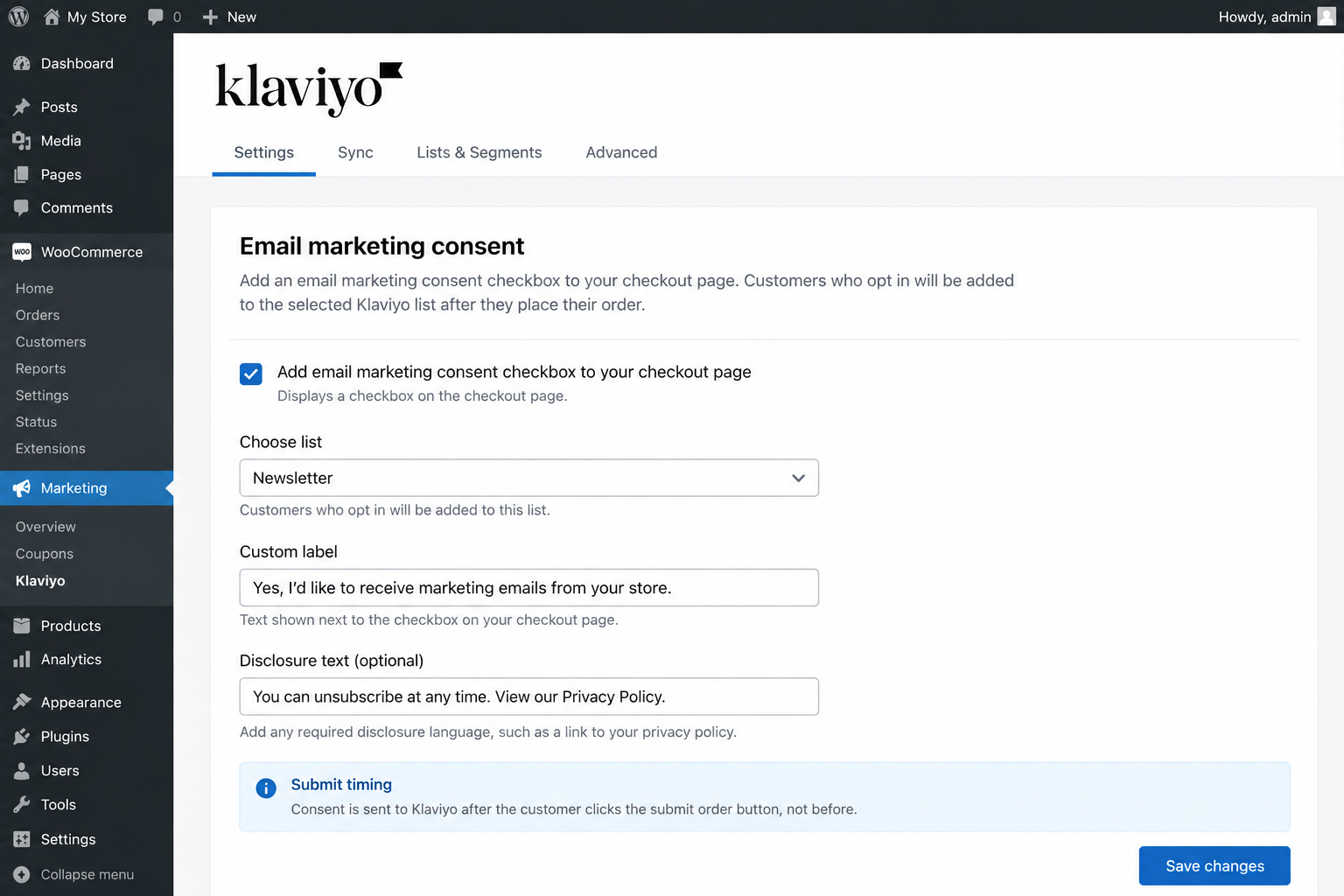
- Choose List: Pick the Klaviyo list that should receive anyone who ticks the checkbox during checkout on your store.
- Custom Label: Edit the text beside the checkbox so it clearly describes what the shopper is agreeing to receive.
- Disclosure Text: Add any disclosure language your region or business requires, such as links to your privacy policy.
- Submit Timing: Consent reaches Klaviyo after the customer clicks the submit order button, not before that moment.
A purchase does not automatically mean a customer agreed to marketing emails, so let shoppers choose it themselves.
Step 5: Configure SMS or Other Consent Where Needed
Email and mobile consent are separate, so configure each channel independently. To collect SMS or WhatsApp consent at WooCommerce checkout, the relevant Klaviyo channel must be enabled and your WooCommerce extension must support it. Klaviyo currently requires version 2.4.0 or later for SMS consent and 3.8.0 or later for WhatsApp consent.
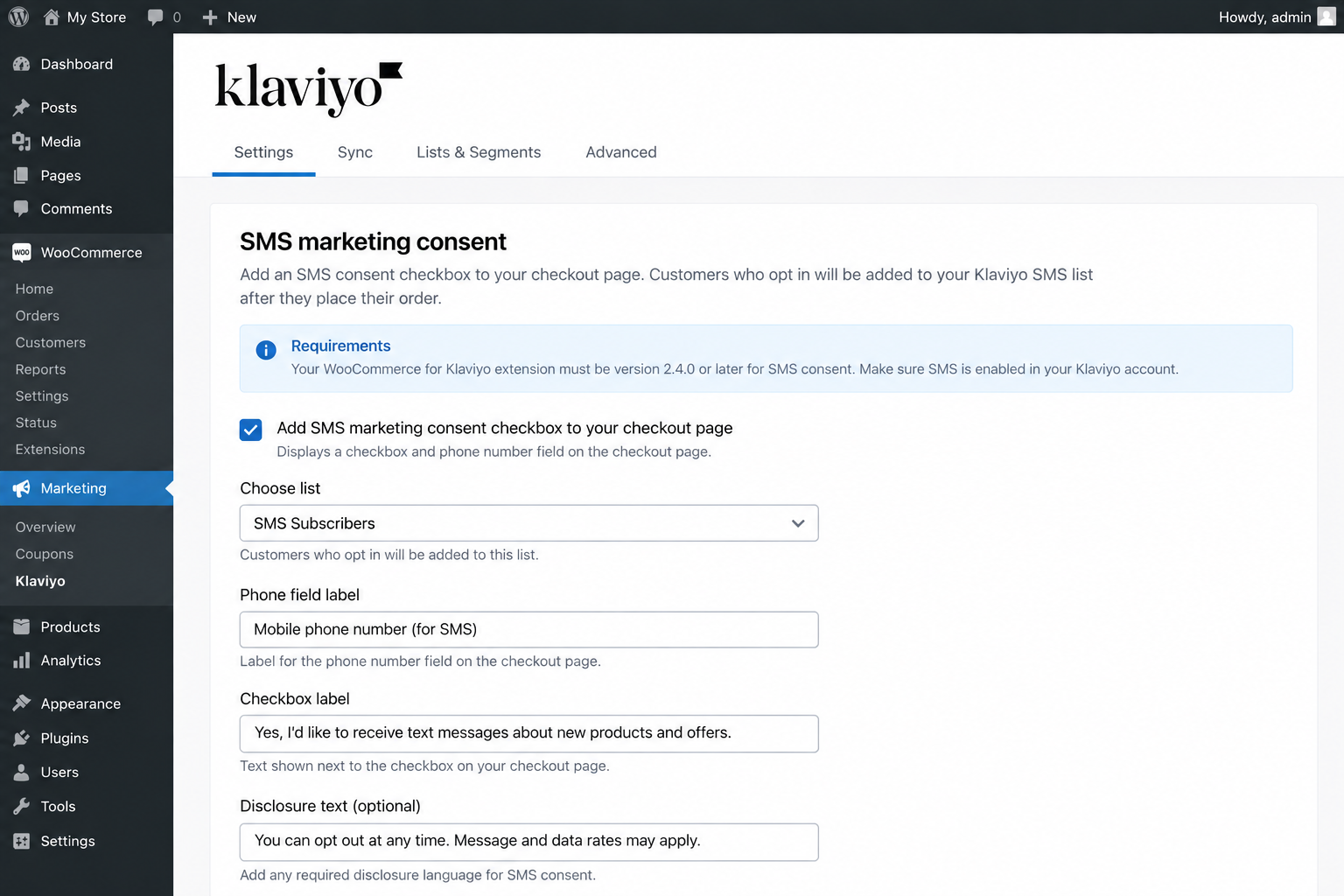
Add a clear checkbox label and consent disclosure so people know what they are agreeing to when they provide their phone number. Klaviyo also notes that text consent will not sync if your company is age-gated, so check this setting before you continue.
Step 6: Configure Currency Settings if Required
Stores that sell in several currencies can convert all future events into one standard currency for cleaner reports. Tick the currency box, then pick a currency, and Klaviyo converts Placed Order and Ordered Product events.
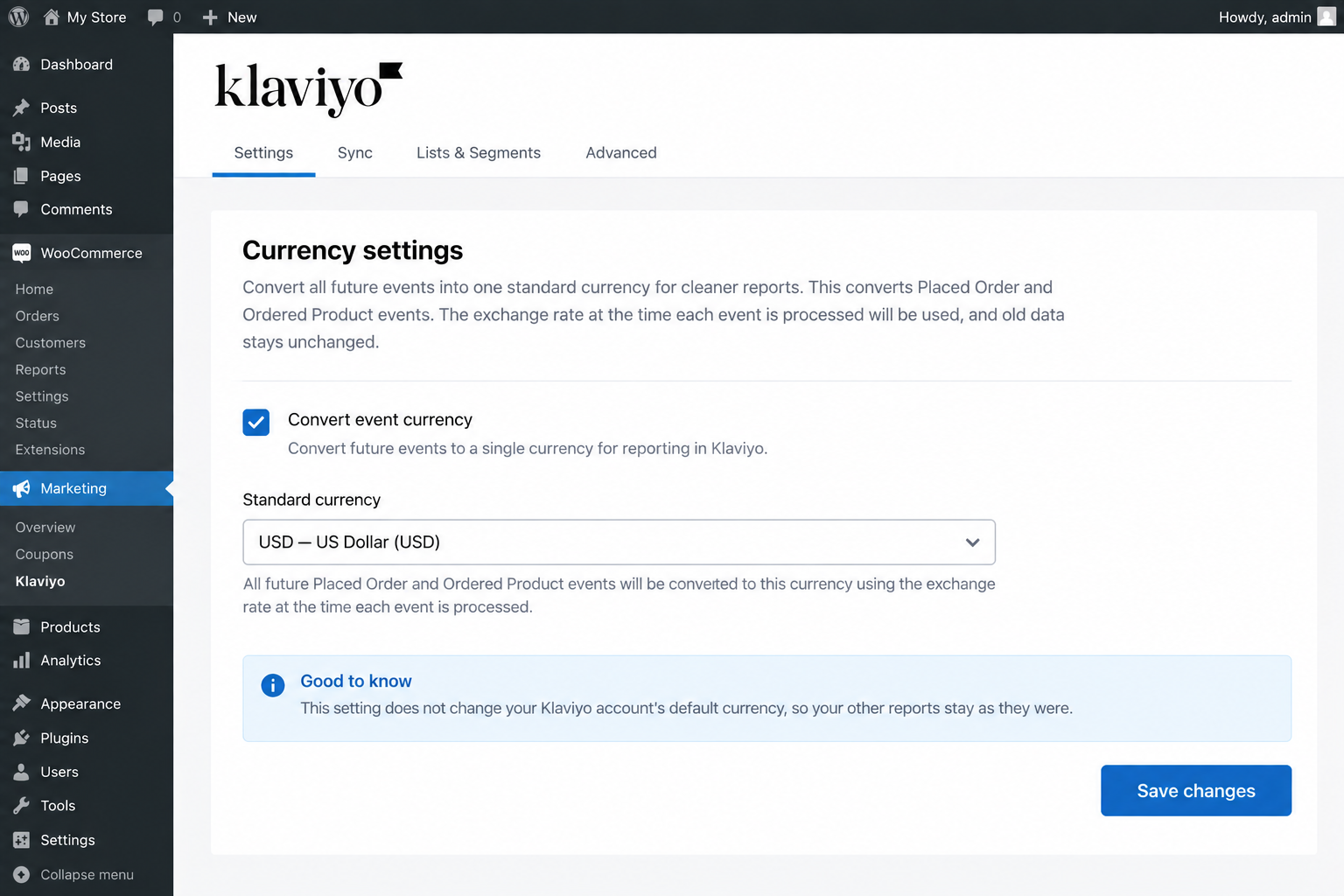
It uses the exchange rate when each event is processed, and old data stays unchanged. This setting does not change your account's default currency, so your other reports stay as they were.
Step 7: Complete the Integration
Once every option looks right, click Complete setup, and you can edit these choices later under Integrations. Your store is now connected, but the connection is only the first stage of the work.
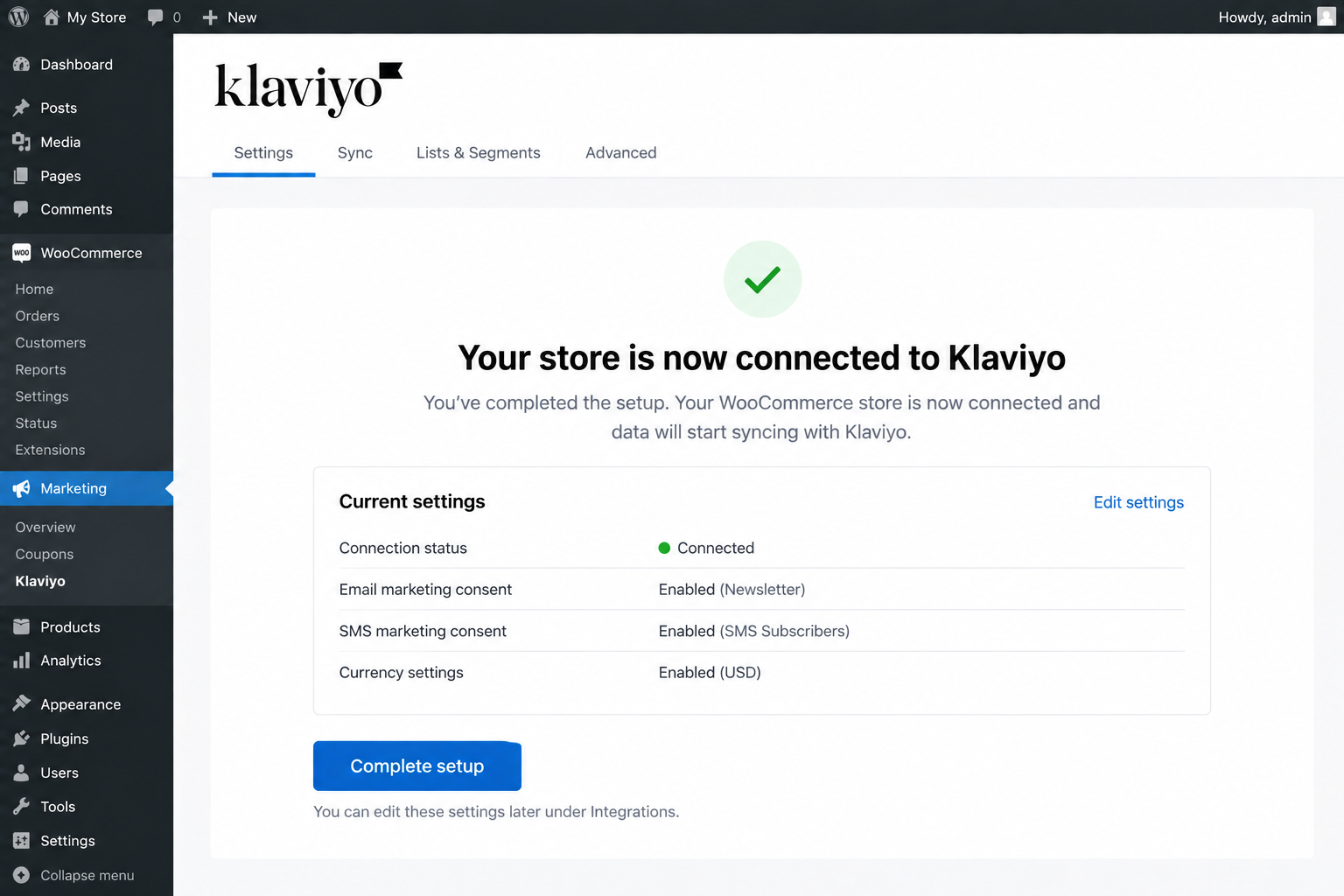
Test the store before any flow depends on the data, using the steps in the next section. For a second reference, Klaviyo publishes an official WooCommerce setup guide with the same steps.
How to Test the Klaviyo WooCommerce Integration
Connected does not always mean working, and a single test order will show you what Klaviyo actually receives. Run it before any flow goes live, then check events, profile details, consent, and history in that order.
Place a Test Order
Open your store in a private window, add a product to your cart, and head to checkout without logging in. Enter a test email and phone number you control, tick the consent boxes, and submit the order.
Check Started Checkout
Wait a minute or two, then open the WooCommerce integration page in Klaviyo and look at Recent Data. Started Checkout should show up there once the checkout event fires for your test email address.
Check Placed Order
Check that a Placed Order event appears after the test order reaches the WooCommerce Processing status. Klaviyo records Placed Order when it syncs an order with this status, so orders that remain in another status may not create the event yet.
Verify the Customer Profile and Consent
Search for your test email in Profiles and open the record that appears in Klaviyo. Confirm the name, location, list, subscription status, and both events match what you entered and ticked during checkout.
Check Historical Sync
Klaviyo also pulls in past orders, and a progress bar shows how far the sync has moved. Let it finish before building segments on lifetime spend or order counts, because partial history gives wrong numbers.
What WooCommerce Data Syncs to Klaviyo?
Klaviyo syncs customer profiles and nine key WooCommerce events, covering site activity, product views, carts, checkouts, purchases, and order updates. These events can trigger flows or help build segments based on customer activity. The table below shows what each event means and how you can use it in your marketing.
WooCommerce Event | What It Means | Marketing Use |
Active on Site | Known visitor is active | Engagement targeting |
Viewed Product | Known visitor views product | Browse abandonment |
Added to Cart | Item added to cart | Cart recovery |
Started Checkout | Checkout begins | Checkout recovery |
Placed Order | Order completed | Post-purchase |
Ordered Product | Product-level purchase | Product segmentation |
Fulfilled Order | Order moves to Complete in WooCommerce | Post-fulfillment follow-up |
Cancelled Order | Order cancelled | Customer follow-up |
Refunded Order | Order refunded | Suppression or service follow-up |
Customer Profile Data
Each WooCommerce customer gets a corresponding Klaviyo profile with basic details such as their first name, last name, and location. These details can also be used to personalize emails and build customer segments.
Product and Order Data
Klaviyo receives product and order details such as product IDs, SKUs, names, categories, order value, coupon use, and shipping methods. This data helps you create product-based segments and send more relevant follow-up messages.
Behavioral Data
Klaviyo can track browsing and cart activity when a visitor has been identified or cookied. Events such as Viewed Product and Active on Site may not appear for visitors Klaviyo cannot identify.
How to Use WooCommerce Data in Klaviyo Flows
Each WooCommerce event can trigger a flow, and the seven below cover the journey from first signup to repeat purchase. Start with the ones that match your biggest gap, whether that is lost carts, one-time buyers, or quiet subscribers.
Welcome Flow
Send this flow when someone joins your list through a form or checkout consent, not after every order. Start by telling people who you are and what you sell, then point them to a few bestsellers. Add a discount only if your margins can handle it.
Browse Abandonment Flow
This flow reaches known visitors who looked at a product and then left without buying. Wait a short while, then send an email showing the exact item they viewed. If they buy in the meantime, stop the flow so they don't get a pointless reminder.
Added-to-Cart Flow
The Added to Cart event lets you follow up even before a shopper reaches checkout. It works well for stores where people add items early and keep comparing options elsewhere. If you use both Added to Cart and Started Checkout flows, configure filters and exclusions carefully so the same shopper does not receive overlapping recovery messages.
Checkout Abandonment Flow
This flow starts with the Started Checkout event and should skip anyone who goes on to place an order. Test the delay before the first reminder and the spacing between later messages based on your purchase cycle, average order value, and customer behavior.
Post-Purchase Flow
Start this flow from Placed Order so every new buyer hears from you after paying. Begin with a thank you and delivery details, then share tips for using the product, and ask for a review once they have had time to try it. Keep service messages and marketing messages apart, since promotions need proper consent.
Product-Specific Cross-Sell Flow
Ordered Product creates one event for each item, so you can follow up based on what someone actually bought. Use categories, SKUs, or product IDs to suggest things that go well with that item. Someone who buys a coffee grinder may need filters, while a buyer of boots may want waterproof spray.
Win-Back Flow
Use the time since the last Placed Order to spot buyers who have gone quiet. The right delay depends on what you sell, because a coffee roaster and a furniture store see very different buying habits. Check your normal reorder cycle first, then start the flow a little after that point.
How Klaviyo Abandoned Cart Tracking Works With WooCommerce
Many store owners connect WooCommerce and Klaviyo for one main reason, to win back shoppers who leave before paying. Klaviyo watches what visitors do in your store, such as adding items or starting checkout, and uses that to send a timely reminder. Here is how that tracking works from start to finish
Added to Cart vs Started Checkout
These two events sound alike, but they are recorded at different moments and need different flow setups.
- Added to Cart: This is recorded when a shopper Klaviyo has already cookied adds an item to their cart.
- Started Checkout: This is recorded when a known shopper views checkout, either logged in or after typing a billing email.
Both events can power a cart recovery flow, and both carry the cart rebuild key described below. Choose one main trigger per audience, and test which one fits your traffic and checkout style best.
Exclude Customers Who Purchase
Every recovery flow needs a filter that removes anyone who has placed an order since entering. Without it, a customer who already paid keeps getting reminders about a cart they finished.
That annoys people, wastes sends, and can lead to unsubscribes or spam complaints that hurt your sender reputation. Use the flow filter for Placed Order zero times since starting this flow, then test it.
Rebuild the WooCommerce Cart
Klaviyo generates a cart rebuild key on Started Checkout and Added to Cart events for your store. Put that key in a button link, and shoppers return to the same cart on any device.
The link follows this pattern, with your store address placed in front of the cart path:
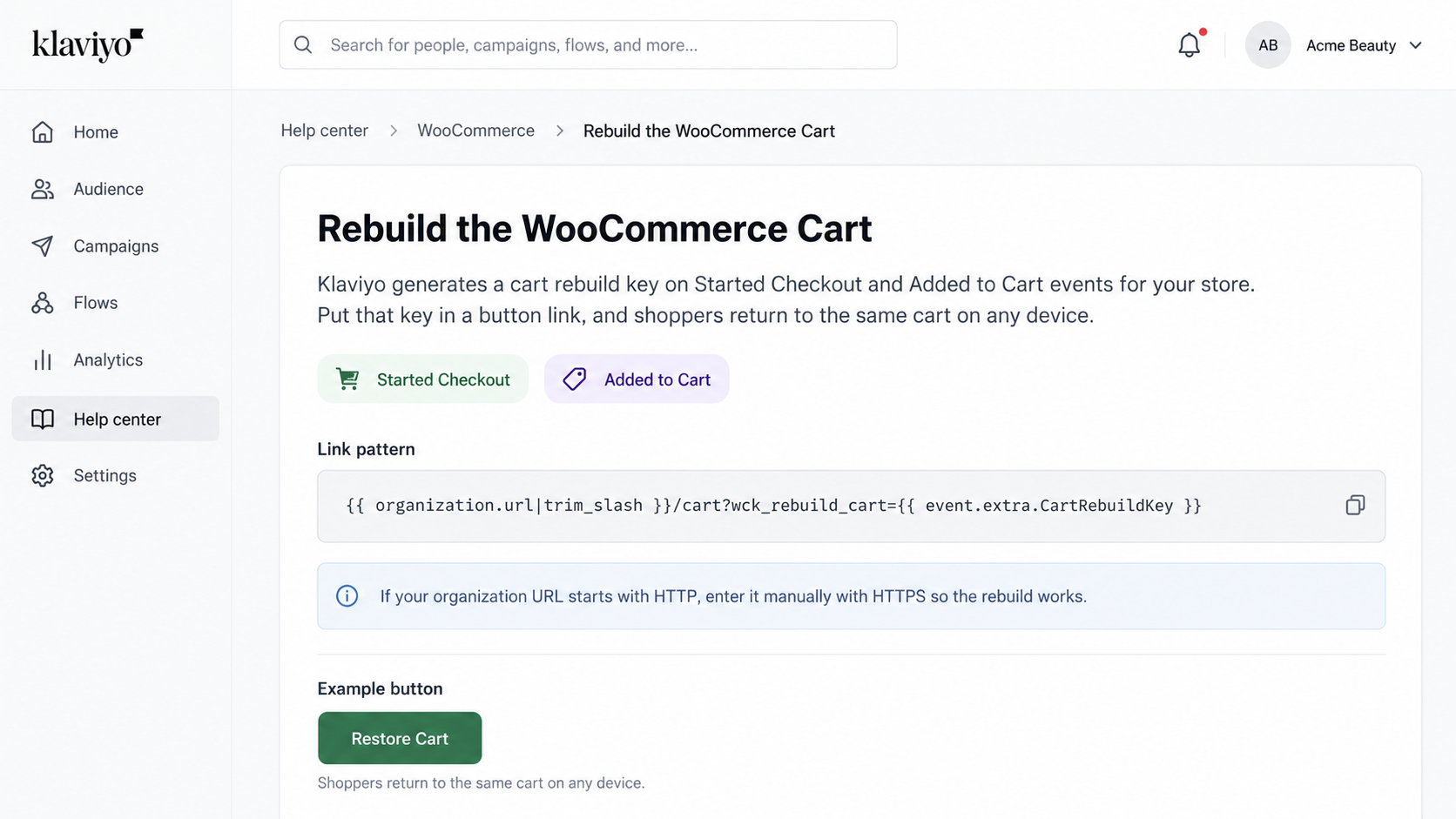
If your organization URL starts with HTTP, enter it manually with HTTPS so the rebuild works. We keep this part short on purpose, because the full abandoned cart guide covers the flow in more depth.
How to Add Klaviyo Signup Forms to WooCommerce
Two common native ways to collect subscribers with the Klaviyo WooCommerce integration are on-site signup forms and checkout consent. They work well side by side, so you don't have to pick just one. Here is how to set up each.
Popup and Flyout Forms
These forms rely on Klaviyo's onsite tracking to show up, so check that the integration is active first. Build the form inside Klaviyo and choose when and where it should appear. Then link it to the list you want new subscribers to join.
Embedded Forms
An embedded form sits right inside your page, like in the footer, a blog post, or the account page. Copy the form code from Klaviyo and paste it into a WordPress block or widget. Once it's live, submit a test entry to make sure it goes through.
Checkout Consent
A checkout checkbox and a signup form both bring in opted-in subscribers, but they work a little differently. With the checkbox, shoppers say yes while buying, and their consent only syncs after they click the place order button. A signup form can catch visitors anywhere on your site, even if they never buy. Use both, and check the source on each subscriber so your reports show which one works better.
Klaviyo Coupons for WooCommerce: Important Limitations
Coupons in Klaviyo don't work the same way on every platform, and WooCommerce has its own rules. Some of them can surprise you if you only find out after a campaign has gone out. Here is what to know before you set up any discount.
Static WooCommerce Coupons
A static coupon is one shared code that you create in WooCommerce and paste into your emails. It works in campaigns, flows, and forms, but anyone who gets the code can pass it along. Set a usage limit or an expiry date in WooCommerce so it doesn't get misused.
Unique WooCommerce Coupons in Klaviyo Flows
Klaviyo can make single-use codes for flow emails, which works well for welcome and cart recovery messages. Create the coupon in WooCommerce first, then use the same code in Klaviyo. WooCommerce and Klaviyo store these codes in lowercase. Klaviyo suggests a usage limit of one per coupon and one per user, and it makes codes in batches based on the minimum inventory you set.
Campaign Limitation
Unique WooCommerce coupons only work in flow emails, so you can't use them in a campaign. For a campaign, use a static coupon or upload your own set of unique codes. Any code you upload must also exist in WooCommerce, or the checkout page will reject it.
Signup Form Limitation
Unique WooCommerce coupons can't show up inside a signup form or its success message. The easy fix is to let the form add people to a list, then send the code from a welcome flow. Coupon rules can change, so check Klaviyo's current documentation before you promise a code on a form.
How to Segment WooCommerce Customers in Klaviyo
Your WooCommerce store already holds a lot of useful order data, like what people bought, how often, and how much they spent. Segments let you sort that data into groups, so each group gets a message that fits them.
First-Time Customers
Build this group with the condition that someone has placed an order exactly one time over all time. These buyers need reassurance, product tips, and a reason to come back for a second order.
Repeat Customers
Repeat customers have placed an order more than once, so they already trust your store and products. Thank them, share early access, and ask for feedback instead of sending the same discount again.
High-Value Customers
Define this group by total spend or average order value over a set period that suits your store. Treat them well with early launches, personal notes, and service that feels a step above normal.
Product-Specific Buyers
Use Ordered Product with a SKU, product name, or category to find people who bought one item. This group suits refills, accessories, upgrades, and product care advice that actually applies to what they own.
Cart or Checkout Abandoners
Combine Added to Cart or Started Checkout with zero Placed Order events in the same time frame. Use this group for one-off campaigns, but keep your automated flow as the main recovery tool.
Inactive Customers
Look for people with no recent purchase, measured against your store's normal buying cycle rather than a copied number. A skincare brand might use sixty days, while a furniture seller may wait a full year.
Refunded or Cancelled Customers
Use Refunded Order and Cancelled Order events to build a group you may want to exclude. These customers often need support first, so promotional emails may feel tone deaf if sent too soon.
Our guide to Klaviyo segmentation for ecommerce goes deeper, but these seven groups are a practical start.
How to Measure Klaviyo Performance for WooCommerce
Once the integration is live, a few numbers tell you whether it is actually earning its place. Check these metrics weekly at first, then monthly once your flows and campaigns settle into a pattern:
- Campaign Revenue: Track revenue from each campaign and compare it with the size and engagement of the audience.
- Flow Revenue: Review each automated flow on its own, since cart recovery and welcome series perform very differently.
- Revenue Per Recipient: Divide revenue by recipients to compare messages of different sizes on a fair basis across your whole account.
- Placed Orders: Count orders linked to your emails and compare them against total orders in WooCommerce to spot gaps.
- Conversion Rate: Track the share of recipients who complete the defined conversion within your selected attribution window.
- Cart Recovery: Compare recovered carts with abandoned carts to see how well your reminders really work for your shoppers.
- Repeat Purchases: Measure how many first-time buyers return, since that shows whether post-purchase emails build real loyalty over time.
- Unsubscribe Rate: A rising rate usually signals too many emails or content that does not match expectations.
- Spam Complaints: Keep complaints very low, because they damage your sender reputation faster than almost any other signal.
- Bounce Rate: High bounces point to bad addresses, old lists, or typos captured at checkout or signup.
Klaviyo and WooCommerce revenue totals may differ because WooCommerce subtracts refunded orders from its revenue calculation, while Klaviyo's Placed Order revenue does not. Compare the systems with this calculation difference in mind.
A regular review also catches broken tracking early, and our Klaviyo audit checklist shows what to check.
Common Klaviyo WooCommerce Integration Problems
Each problem below has a likely cause and a fix, so work through them in order.
Klaviyo Won't Connect to WooCommerce
- Likely Cause: Caching plugins, redirects, firewalls, or Cloudflare Bot Fight Mode can block Klaviyo from connecting to your store.
- Quick Fix: Temporarily turn off caching and redirect plugins, allow Klaviyo's IP addresses through your firewall, and make sure API access is enabled.
Once the connection works, turn your plugins back on and test your tracking events again to make sure everything is working properly.
404 Error During Connection
- Likely Cause: A plain permalink setting or a redirect rule can hide the API address Klaviyo needs to reach.
- Quick Fix: Switch to a clean permalink structure, save the settings, and try the connection again after clearing your caches.
SSL or HTTPS Error
- Likely Cause: An expired certificate, mixed content, or a store address that still starts with HTTP can stop the connection.
- Quick Fix: Verify your HTTPS and SSL configuration, update the site address in WordPress settings, and test again.
Unable to Access API With Credentials
This error appears when Klaviyo cannot read your order data using the API details that WooCommerce provides.
- Likely Cause: A WordPress customization may be blocking API access for non-logged-in requests, which can return a 401 response.
- Quick Fix: Allow Klaviyo through your firewall and confirm the API key has read and write access.
A related order count error means WooCommerce returned an unexpected value, so fix it inside WooCommerce first.
Started Checkout Is Missing
- Likely Cause: Shoppers were not identified, so Klaviyo could not link the checkout to a known profile.
- Quick Fix: Test while logged in or enter a billing email at checkout, then wait a couple of minutes.
Also check whether a custom checkout page or plugin replaces the standard WooCommerce checkout events.
Product Views or Cart Events Are Missing
These events depend on onsite tracking and on Klaviyo recognizing the visitor, so check both first.
- Tracking Setup: Confirm onsite tracking is active and the Klaviyo script loads on product and cart pages.
- Visitor Identification: Test with a visitor Klaviyo already knows, because anonymous sessions will not create these events.
- Plugin Conflicts: Deactivate other tracking, optimization, or script-blocking plugins one at a time to find the culprit.
Klaviyo Plugin Is Out of Date
An old extension can miss new fixes, so update it whenever the Plugins page shows a new version. Turn on auto-updates for the Klaviyo plugin and read the changelog on the WordPress plugin directory.
Native Klaviyo Plugin vs Third-Party WooCommerce Connectors
The official extension covers the needs of most stores, but a few situations call for something extra.
Use the Native Integration When...
Pick the native extension when you want a standard, supported connection between your store and Klaviyo.
- Standard Sync: Customer, order, and product data flows into Klaviyo without any extra tools to maintain or pay for.
- Core Events: Started Checkout, Placed Order, Viewed Product, and Added to Cart cover everyday ecommerce marketing needs.
- Native Flows: Welcome, cart recovery, and post-purchase flows all work with the events the extension already sends.
- Built-In Forms: Signup forms and checkout consent are built in, so you need no separate form plugin.
Consider a Third-Party Connector When...
A connector makes sense only when you can name a specific need the native extension cannot meet.
- Custom Logic: You need workflow rules, such as conditions or delays, that the native integration does not offer.
- Existing Automation: Another WordPress automation system already controls key events, and you want everything routed through it.
- Cross-Plugin Actions: You need custom actions that span several plugins, such as memberships, bookings, or subscriptions, in one place.
Do not install a connector like FunnelKit just because it ranks well in search results. Extra plugins add cost, maintenance, and new places for tracking to break, so the need should be real.
Klaviyo WooCommerce Best Practices After Setup
Setup is only the start, because stores change and tracking can quietly break without anyone noticing. These six habits keep your data correct and your flows working, with only a little time each month.
Keep the Plugin Updated
Turn on auto-updates if you are comfortable with them, and skim the changelog before big releases. Old versions often cause strange errors, because newer ones fix problems with WooCommerce and other plugins.
Test Important Events After Store Changes
Place a quick test order after any change to your checkout, scripts, or customer data. WooCommerce updates, new checkout fields, theme changes, caching rules, and plugin upgrades can all break tracking without any warning.
A new theme, for example, may remove the Klaviyo script from your product and cart pages.
Check Consent Regularly
Once a month, check that new subscribers land on the right list with the right email and text status. Small consent mistakes are easy to miss, and they can cause legal and deliverability trouble later.
Monitor Core Flows
Open each main flow now and then, and check the parts that tend to drift:
- Trigger: Make sure the flow still starts from the right event, list, or segment that you chose.
- Filters: Look for old filters or leftover conditions that skip people who should receive the message.
- Exclusions: Check that buyers leave recovery flows as soon as they place an order with you.
- Content: Click the links and check the images and product blocks, because broken content hurts trust and revenue.
- Revenue: Watch for sudden drops in flow revenue, since they often point to a tracking or trigger problem.
- Skipped People: See why people were skipped, since smart sending or filters may block more than you expect.
Review Segments and List Health
Remove outdated segments and targeting rules, and regularly suppress long-term unengaged profiles from marketing sends based on your engagement strategy. A clean list protects your inbox placement and keeps your reports honest and easy to trust.
Audit the Integration Periodically
Every few months, check that your metrics still sync and clean out flows or integrations you no longer use. A simple written checklist makes this routine, so it does not get skipped when the team is busy.
When Do You Need Help With a Klaviyo WooCommerce Setup?
You can handle the basics yourself, but some problems eat up hours and are better left to an expert. If you spot any of these signs in your own store, it is time to ask for help:
- Missing Events: Started Checkout, Added to Cart, or Viewed Product events do not appear after careful testing.
- Consent Gaps: Subscribers land on the wrong list or show the wrong email and text status in their profiles.
- Broken Recovery: Cart recovery emails do not send, repeat too often, or keep going after a purchase.
- Plugin Conflicts: Several plugins fight over checkout, scripts, or consent, and nobody knows which one causes problems.
- Odd History: Historical data looks incomplete, with missing orders or customer counts that do not add up.
- Wrong Events: Segments or flows rely on the wrong WooCommerce events, so audiences are too big or too small.
- ESP Migration: You are moving from another email platform and need lists, consent, and history moved safely.
- Custom Checkout: Your store uses heavy checkout customization that changes how standard WooCommerce events fire for each shopper.
- Trust Issues: Revenue attribution is hard to trust, and nobody can explain the gap between Klaviyo and WooCommerce reports.
A Klaviyo expert can review your integration, event tracking, consent, flows, segmentation, and reporting before you scale your email program. If you want that kind of review, you can hire a Klaviyo expert from our team today.
Conclusion
A good Klaviyo WooCommerce integration takes more than clicking connect and then walking away from your busy store. The real value comes from clean data, honest consent, and flows built on the right events for your shoppers. Connect the correct account, run a test order, and confirm that every important event shows up in your Klaviyo account.
After that, start with the flows that fix your biggest leak, such as cart recovery or post-purchase emails. Keep an eye on coupons, forms, and segments too, since small mistakes there can quietly cost you sales over time.
Stores change all the time, so test again whenever you update plugins, themes, or your checkout page settings. Do this regularly, and your emails will reach the right people with the right message at the right time. If something still looks off after all these checks, you do not have to sort it out alone.
Frequently Asked Questions
Does Klaviyo integrate directly with WooCommerce?
Yes, Klaviyo offers an official extension for WooCommerce that you install from the WooCommerce Marketplace. After you activate it, you approve the connection from the Marketing menu in your WooCommerce admin.
Is Klaviyo for WooCommerce free?
The extension itself is free to add, but Klaviyo charges for its messaging plans based on your profile count. Klaviyo also has a free plan with limits, so check its pricing page for current details.
What WooCommerce data does Klaviyo sync?
Klaviyo syncs customer profiles plus events for views, carts, checkouts, orders, fulfillment, cancellations, and refunds. Product details, order values, coupon use, and shipping methods come along with the relevant order events.
Does Klaviyo sync WooCommerce data in real time?
Yes, Klaviyo's current WooCommerce integration syncs data in real time, usually within a minute or two. Older stores using the Legacy API should upgrade, because that older method does not sync in real time.
Does Klaviyo sync historical WooCommerce orders?
Yes, Klaviyo imports historical orders after you connect, and a progress bar shows the sync status. Wait for it to finish before you trust lifetime spend, order counts, or other history-based segments.
Can Klaviyo track WooCommerce abandoned carts?
Yes, Added to Cart and Started Checkout events both support abandoned cart flows for identified shoppers. Add a Placed Order filter so customers stop receiving reminders once they complete their purchase with you.
Can Klaviyo rebuild a WooCommerce abandoned cart?
Yes, the cart rebuild key lets a shopper return to the same cart from an email link. Add it to your cart URL inside an abandoned cart email triggered by either event.
Can I use Klaviyo signup forms with WooCommerce?
Yes, you can build popup, flyout, or embedded forms in Klaviyo and show them on your WooCommerce store. Onsite tracking must be active, and you should test each form before it goes live.
Can Klaviyo create unique WooCommerce coupons?
Yes, but only in flow emails, where Klaviyo can create single-use WooCommerce codes from a coupon you set up. Campaigns need static codes or uploaded codes, and signup forms cannot show unique WooCommerce codes directly.
Why is my WooCommerce data not showing in Klaviyo?
Common causes include caching or firewall conflicts, missing onsite tracking, unidentified shoppers, SSL problems, and outdated plugins. Run a test order, check Recent Data, and follow the troubleshooting steps earlier in this guide.
Do I need FunnelKit to connect WooCommerce with Klaviyo?
No, the official Klaviyo extension connects WooCommerce with Klaviyo on its own, without FunnelKit or similar tools. Consider a connector only if you need custom workflow logic that the native integration cannot provide.